Pages

Friday, May 28, 2010

USBcillin : Disguised Malware

Today I was copying some of the new songs from my brother's computer to my pen drive. When I opened the pen drive in windows explorer, I noticed that a new file called USBcillin in the pen drive. My brother told me that he had installed the program but was unable to uninstall it since it was not shown in the Add or Remove Programs from the control panel. He told me it was not virus. Even though I was suspicious about the reliability of the program I didn't tell him anything. I just removed the program from the start up options in the msconfig file.


Now let me give a small information about USBcillin. USBcillin is said to be a software that protects your computer from malware when you plug in infected USB drives. However, it is just another rogue application. USBcillin is unable to protect your computer form any possible infections. The rogue modifies registry entries and drops various malicious files onto your computer.

Removal:

1.  Kill processes 

  • 13882768.EXE 
  • 64080532.EXE 
  • 82215601.EXE 
  • USBcillin.exe 
  • QWE.TXT.EXE 
   For killing a process, open task manager and then choose the process tab. From the process shown select the above process and click on the end now button. A warning will be displayed. Click OK button. For more details about killing malware process click here.

2.  Delete the registry values:
   HKEY_LOCAL_MACHINE\SOFTWARE\Microsoft\Windows\CurrentVersion\policies\Explorer\”NoPropertiesMyComputer” = “0″
HKEY_LOCAL_MACHINE\SOFTWARE\Microsoft\Windows\CurrentVersion\policies\system\”DisableTaskMgr” = “0″
HKEY_LOCAL_MACHINE\SOFTWARE\Microsoft\Windows\CurrentVersion\policies\Explorer\”NoSetFolders” = “0″
HKEY_LOCAL_MACHINE\SOFTWARE\Microsoft\Windows\CurrentVersion\policies\Explorer\”NoNetHood” = “0″
HKEY_LOCAL_MACHINE\SOFTWARE\Microsoft\Windows\CurrentVersion\policies\Explorer\”NoFolderOptions” = “0″
# HKEY_LOCAL_MACHINE\SOFTWARE\Microsoft\Windows\CurrentVersion\policies\Explorer\”NoDesktop” = “0″
HKEY_CURRENT_USER\Software\Policies\Microsoft\Windows\System\”DisableCMD” = “0″
HKEY_CURRENT_USER\Software\Microsoft\Windows\CurrentVersion\Policies\Explorer\”NoPrinters” = “0″
HKEY_CURRENT_USER\Software\Microsoft\Windows\CurrentVersion\Policies\Explorer\”NoSetFolders” = “0″
HKEY_CURRENT_USER\Software\Microsoft\Windows\CurrentVersion\Policies\Network\”NoNetSetup” = “0″
HKEY_CURRENT_USER\Software\Microsoft\Internet Explorer\Main\”Window Title” = “Windows Internet Explorer”
HKEY_CURRENT_USER\Software\Microsoft\Windows\CurrentVersion\Policies\Uninstall\”NoAddPage” = “0″
HKEY_CURRENT_USER\Software\Microsoft\Windows\CurrentVersion\Policies\Explorer\”NoFind” = “0″
HKEY_CURRENT_USER\Software\Microsoft\Windows\CurrentVersion\Explorer\TrayNotify\”PastIconsStream” = “hex:14,00,00,00,05,00,00,00,01,00,01,00,b6,00,00,00,14,00,00,00,49,4c,00,06,b6,00,ba,00,04,00,10,00,10,00,ff,ff,ff,ff,21,00…”
HKEY_LOCAL_MACHINE\SOFTWARE\Microsoft\Windows NT\CurrentVersion\Winlogon\”Userinit” = “C:\WINDOWS\system32\userinit.exe,”
HKEY_LOCAL_MACHINE\SOFTWARE\Microsoft\Windows\CurrentVersion\policies\Explorer\”NoRun” = “0″
HKEY_LOCAL_MACHINE\SOFTWARE\Microsoft\Windows\CurrentVersion\policies\system\”DisableRegistryTools” = “0″
HKEY_LOCAL_MACHINE\SOFTWARE\Microsoft\Windows\CurrentVersion\policies\Explorer\”NoViewContextMenu” = “0″
HKEY_LOCAL_MACHINE\SOFTWARE\Microsoft\Windows\CurrentVersion\policies\Uninstall\”NoAddRemovePrograms” = “0″
# HKEY_LOCAL_MACHINE\SOFTWARE\Microsoft\Windows\CurrentVersion\policies\Network\”NoNetSetup” = “0″
HKEY_LOCAL_MACHINE\SOFTWARE\Microsoft\Windows\CurrentVersion\policies\Explorer\”NoFileMenu” = “0″
HKEY_LOCAL_MACHINE\SOFTWARE\Microsoft\Windows\CurrentVersion\Run\”USBcillin” = “C:\WINDOWS\system32\USBcillin.exe”
HKEY_CURRENT_USER\Software\Microsoft\Windows\CurrentVersion\Policies\Explorer\”NoPropertiesMyComputer” = “0″
HKEY_CURRENT_USER\Software\Microsoft\Windows\CurrentVersion\Policies\Explorer\”NoViewContextMenu” = “0″
HKEY_CURRENT_USER\Software\Microsoft\Windows\CurrentVersion\Policies\System\”DisableRegistryTools” = “0″
HKEY_CURRENT_USER\Software\Microsoft\Windows\CurrentVersion\Policies\Explorer\”NoActiveDesktop” = “0″
HKEY_CURRENT_USER\Software\Microsoft\Windows\CurrentVersion\Policies\Uninstall\”NoAddRemovePrograms” = “0″
HKEY_CURRENT_USER\Software\Microsoft\Windows\CurrentVersion\Policies\Explorer\”NoFolderOptions” = “0″
HKEY_CURRENT_USER\Software\Microsoft\Windows\CurrentVersion\Policies\Explorer\”NoDesktop” = “0″
HKEY_LOCAL_MACHINE\SOFTWARE\Microsoft\Windows NT\CurrentVersion\Winlogon\”Shell” = “explorer.exe”
HKEY_LOCAL_MACHINE\SOFTWARE\Microsoft\Windows\CurrentVersion\policies\system\”NoDispCPL” = “0″
HKEY_LOCAL_MACHINE\SOFTWARE\Microsoft\Windows\CurrentVersion\policies\Explorer\”NoPrinters” = “0″
HKEY_LOCAL_MACHINE\SOFTWARE\Microsoft\Windows\CurrentVersion\policies\Explorer\”NoControlPanel” = “0″
HKEY_LOCAL_MACHINE\SOFTWARE\Microsoft\Windows\CurrentVersion\policies\Uninstall\”NoRemovePage” = “0″
HKEY_LOCAL_MACHINE\SOFTWARE\Microsoft\Windows\CurrentVersion\policies\Uninstall\”NoAddPage” = “0″
HKEY_LOCAL_MACHINE\SOFTWARE\Microsoft\Windows\CurrentVersion\policies\Explorer\”NoFind” = “0″
HKEY_LOCAL_MACHINE\SOFTWARE\Microsoft\Windows\CurrentVersion\policies\Explorer\”NoActiveDesktop” = “0″
HKEY_CURRENT_USER\Software\Microsoft\Windows\CurrentVersion\Policies\Explorer\”NoRun” = “0″
HKEY_CURRENT_USER\Software\Microsoft\Windows\CurrentVersion\Policies\Explorer\”NoNetHood” = “0″
HKEY_CURRENT_USER\Software\Microsoft\Windows\CurrentVersion\Policies\Uninstall\”NoRemovePage” = “0″
HKEY_CURRENT_USER\Software\Microsoft\Windows\CurrentVersion\Policies\Explorer\”NoControlPanel” = “0″
HKEY_CURRENT_USER\Software\Microsoft\Windows\CurrentVersion\Policies\System\”DisableTaskMgr” = “0″
HKEY_CURRENT_USER\Software\Microsoft\Windows\CurrentVersion\Policies\System\”NoDispCPL” = “0″
HKEY_CURRENT_USER\Software\Microsoft\Windows\CurrentVersion\Policies\Explorer\”NoFileMenu” = “0″
HKEY_CURRENT_USER\Software\Microsoft\Windows\CurrentVersion\Explorer\MenuOrder\Start Menu\”Order” = “hex:08,00,00,00,02,00,00,00,00,02,00,00,01,00,00,00,03,00,00,00,d2,00,00,00,00,00,00,00,c4,00,00,00,41,75,67,4d,02


To know about deleting registry values, click here.

3. Delete files

  • 64080532.EXE
  •  QWE.TXT.EXE
  •  57273426.SVD
  •  96402658.SVD
  •  71519181.SVD
  •  USBcillin.exe 
  • 13882768.EXE
  •  82215601.EXE  

Delete Directories:

  • %Temp%\      

You can also delete USBcillin by using Spyware Doctor. [ Download]


          Add to Technorati Favorites     Bookmark and Share


Thursday, April 22, 2010

Zeus Virus: Becoming more powerful

 Zeus virus comes of revision 1.6 with the capability of attacking Firefox and Internet Explorer. A truth that gives a chance for the Google Chrome and Opera users to rejoice. In the 5.5 million computers it has a part in protecting, 1 in each 3000 has become infected. The BBC site informs that not only does Trusteer operate in the U.K, it also is found in the U.S.A.

Zeus is a financial malware.  It infects consumer PCs, waits for them to log onto a list of targeted banks and financial institutions, and then steals their credentials and sends them to a remote server in real time. Additionally, it may inject HTML into the pages rendered by the browser, so that its own content is displayed together (or instead of) the genuine pages from the bank’s web server. Thus, it is able to ask the user to divulge more personal information, such as payment card number and PIN, one time passwords and TANs, etc.


Zues Virus is understood to be the biggest culprit among the family of malware targeting the financial websites and institutions. According to some of the studies, as much as 44% of all financial malware are based upon Zeus. Despite such an alarming state, it is shocking to know that most of the Latest Security Software,  even if they are updated to the latest version,  are incapable of finding and removing Zeus Malware infections. In a recent study by Trusteer, it has been revealed that as much as as 55% of all the tested 10,000 computers, which were equipped with the latest updated security software and antivirus, were not able to detect and remove the traces of Zeus Virus.

The malware steals login information by recording keystrokes when the infected user is on a list of target websites. These websites are usually banks and other financial institutions. The user’s data is then sent to a remote server to be used and sold on by cyber-criminals. “We expect this new version of Zeus to significantly increase fraud losses, since nearly 30% of internet users bank online with Firefox and the infection is growing faster than we have ever seen before,” said Amit Klein, chief technology officer at Trusteer.

For more details on spread of infection visit:  thepcsecurity.com/latest-security-software-cannot-detect-zeus-virus/

Removal:
Run an updated antivirus software capable of detecting Zeus virus. Alternatively an online malware scanner like Trend Micro HouseCall or Windows Live OneCare safety scanner may also be used to scan your system for bot infection. More Online Anti-virus Scanners. Anti-malware softwares like Malware Bytes and Super Anti-Spyware can also be used.


                    Add to Technorati Favorites         Bookmark and Share


Friday, March 26, 2010

Antivirus 2010: Removal

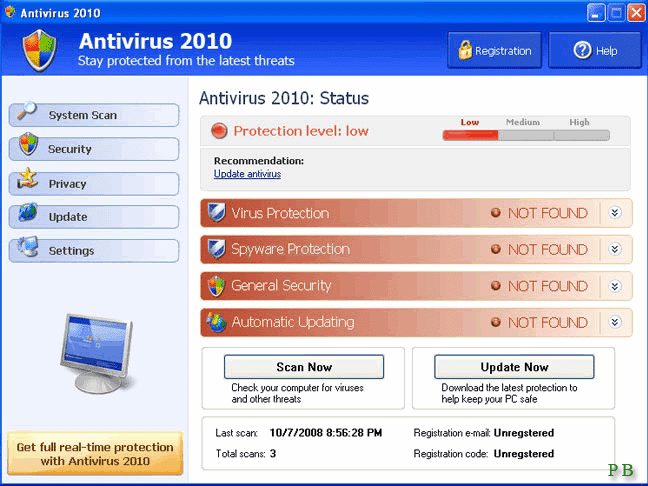
 Antivirus 2010 is a fake antivirus software which may harm your computer if used. It is a cunning malware that uses advertisements to make the user pay for the malware. It displays fake Blue Screen Of Death (BSOD). In the BSOD it shows that windows has detected unregistered version of the Antivirus 2010. It has to be registered for solving the problem. Do not believe this! It is the cunning task of Antivirus 2010. The BSOD displayed by Antivirus 2010 looks like this:


If your computer displays above screen, do not trust it and do not pay for Antivirus 2010 malware.
Screenshot of Antivirus 2010 is shown below:


Symptoms:

  • Changes browser settings
  • Shows commercial adverts
  • Connects itself to the internet
  • Stays resident in background


Removal:

You can remove Antivirus 2010 by using anti malware softwares like
1.  Malware Bytes                       Download
2. Windows Defender                 Download

Manual removal:

You can delete Antivirus 2010 by following the below steps.

1. Kill the process 'AV2010.exe svchost.exe wingamma.exe'
     Help: How to kill the process
2. Remove the following Registry values
     HKEY_CURRENT_USER\Software\AV2010
     HKEY_CLASSES_ROOT\AppID\{3C40236D-990B-443C-90E8-B1C07BCD4A68}
     HKEY_CLASSES_ROOT\AppID\IEDefender.DLL
     HKEY_CLASSES_ROOT\CLSID\{FC8A493F-D236-4653-9A03-2BF4FD94F643}
     HKEY_CLASSES_ROOT\IEDefender.IEDefenderBHO
     HKEY_CLASSES_ROOT\IEDefender.IEDefenderBHO.1
     HKEY_CLASSES_ROOT\Interface\{7BC7565C-5062-43CE-8797-DC2C271140A9}
     HKEY_CLASSES_ROOT\TypeLib\{705FD64B-2B7B-4856-9337-44CA1DA86849}
     HKEY_LOCAL_MACHINE\SOFTWARE\Microsoft\Windows\CurrentVersion\Explorer\Browser  Helper Objects\{FC8A493F-D236-4653-9A03-2BF4FD94F643}
     HKEY_LOCAL_MACHINE\SYSTEM\ControlSet001\Control\Class\{4D36E972-E325-11CE-BFC1-   08002bE10318}\0012
      HKEY_LOCAL_MACHINE\SYSTEM\ControlSet001\Control\Class\{4D36E972-E325-11CE-  BFC1-08002bE10318}\0013
     HKEY_LOCAL_MACHINE\SYSTEM\ControlSet001\Control\Class\{4D36E972-E325-11CE-BFC1-08002bE10318}\0014
     HKEY_LOCAL_MACHINE\SOFTWARE\Microsoft\Windows\CurrentVersion\Run "Windows Gamma Display"


       Help: How to remove registry values

3. Unregister DLLs

     IEDefender.dll
  
      Help: How to unregister malicious dlls

4. Delete files

    Program Files\\AV2010\\AV2010.exe Program Files\\AV2010\\svchost.exe WINDOWS\\system32\\IEDefender.dll WINDOWS\\system32\\wingamma.exe

    Help: How to delete malicious files

5  Delete Directories
     c:\Program Files\AV2010
       c:\Documents and Settings\All Users\Start Menu\Programs\AV2010

                               Add to Technorati Favorites                           Bookmark and Share